> ## Documentation Index
> Fetch the complete documentation index at: https://tigerdata-747200db-chore-custom-colored-homepage.mintlify.site/llms.txt
> Use this file to discover all available pages before exploring further.
# Integrate qStudio with Tiger Cloud
> qStudio is a modern free SQL editor that provides syntax highlighting, code-completion, excel export, charting, and much more. Integrate qStudio with Tiger Cloud
export const SERVICE_LONG = 'Tiger Cloud service';
export const SELF_LONG = 'self-hostedTimescaleDB';
[qStudio][qstudio] is a modern free SQL editor that provides syntax highlighting, code-completion, excel export, charting, and much more. You can use it to run queries, browse tables, and create charts for your {SERVICE_LONG}.
This page explains how to integrate qStudio with {CLOUD_LONG}.
## Prerequisites
To follow the steps on this page:
* Create a target [{SERVICE_LONG}][create-service] with time-series and analytics enabled.
You need [your connection details][connection-info]. This procedure also
works for [{SELF_LONG}][enable-timescaledb].
[create-service]: /cloud/tiger/get-started/create-services
[enable-timescaledb]: /open-source/timescaledb/install-and-update/install-self-hosted
[connection-info]: /integrations/find-connection-details
* [Download][qstudio-downloads] and install qStudio.
## Connect qStudio to your {SERVICE_LONG}
To connect to {CLOUD_LONG}:
1. **Start qStudio**
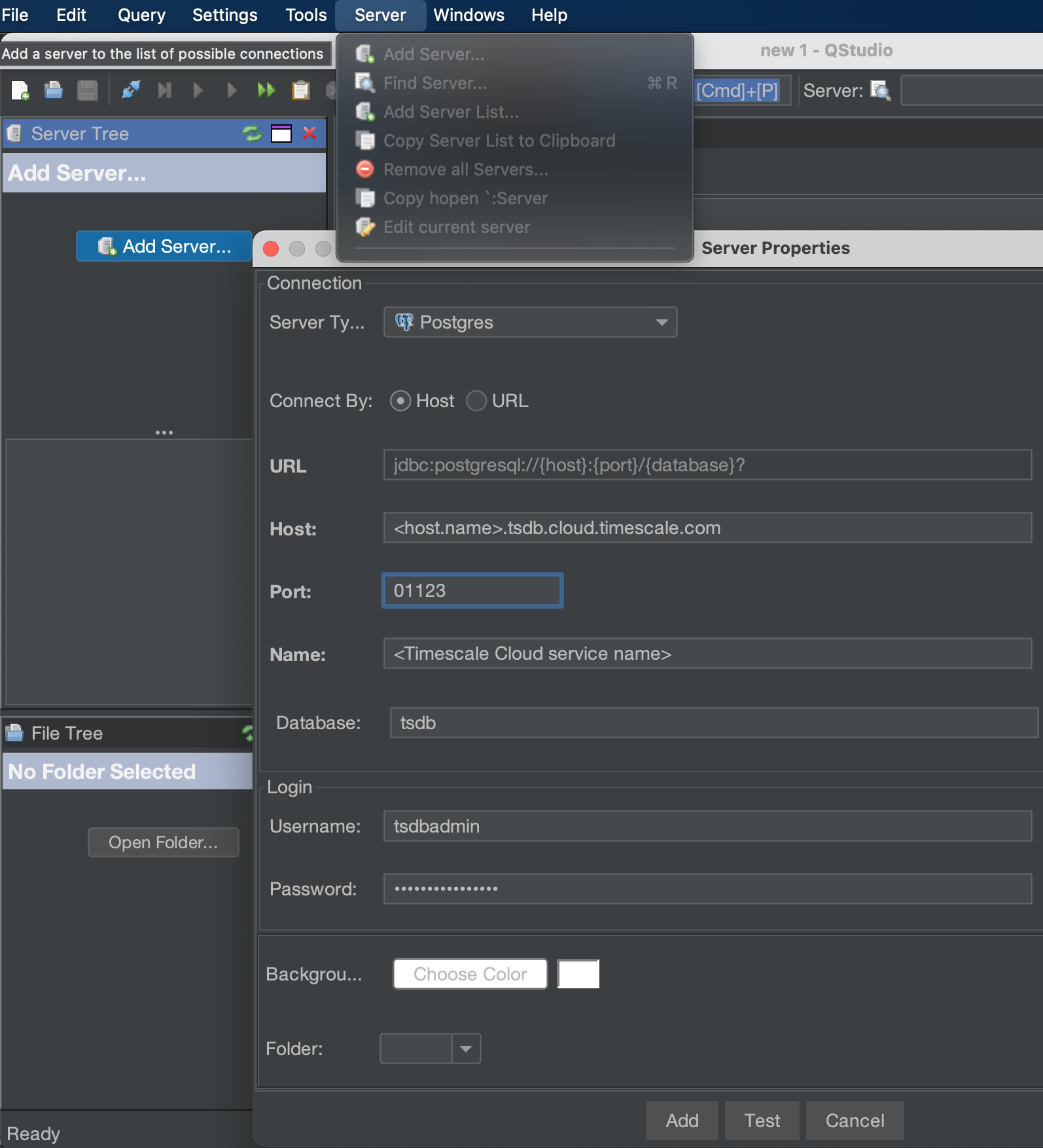
2. **Click `Server` > `Add Server`**
3. **Configure the connection**
* For `Server Type`, select `Postgres`.
* For `Connect By`, select `Host`.
* For `Host`, `Port`, `Database`, `Username`, and `Password`, use
your [connection details][connection-info].
1. **Click `Test`**
qStudio indicates whether the connection works.
2. **Click `Add`**
The server is listed in the `Server Tree`.
You have successfully integrated qStudio with {CLOUD_LONG}.
[qstudio]: https://www.timestored.com/qstudio/
[qstudio-downloads]: https://www.timestored.com/qstudio/download
[connection-info]: /integrations/:currentVersion:/find-connection-details/