> ## Documentation Index
> Fetch the complete documentation index at: https://tigerdata-747200db-chore-custom-colored-homepage.mintlify.site/llms.txt
> Use this file to discover all available pages before exploring further.
# Integrate Amazon CloudWatch with Tiger Cloud
> Amazon CloudWatch is a monitoring and observability service. Export telemetry data from your Tiger Cloud service with time-series and analytics capability to Amazon CloudWatch
export const SERVICE_SHORT = 'service';
export const CLOUD_LONG = 'Tiger Cloud';
export const CONSOLE = 'Tiger Cloud Console';
export const SERVICE_LONG = 'Tiger Cloud service';
[Amazon CloudWatch][cloudwatch] is a monitoring and observability service designed to help collect, analyze, and act on data from applications, infrastructure, and services running in AWS and on-premises environments.
You can export telemetry data from your {SERVICE_LONG}s with the time-series and analytics capability enabled to CloudWatch. The available metrics include CPU usage, RAM usage, and storage. This integration is available for [Scale and Enterprise][pricing-plan-features] pricing tiers.
This pages explains how to export telemetry data from your {SERVICE_LONG} into CloudWatch by creating a {CLOUD_LONG} data exporter, then attaching it to the {SERVICE_SHORT}.
## Prerequisites
To follow the steps on this page:
* Create a target [{SERVICE_LONG}][create-service] with time-series and analytics enabled.
You need your [connection details][connection-info].
[create-service]: /cloud/get-started/create-services
[connection-info]: /integrations/find-connection-details/
* Sign up for [Amazon CloudWatch][cloudwatch-signup].
## Create a data exporter
A {CLOUD_LONG} data exporter sends telemetry data from a {SERVICE_LONG} to a third-party monitoring
tool. You create an exporter on the [project level][projects], in the same AWS region as your {SERVICE_SHORT}:
1. **In {CONSOLE}, open [Exporters][console-integrations]**
2. **Click `New exporter`**
3. **Select the data type and specify `AWS CloudWatch` for provider**
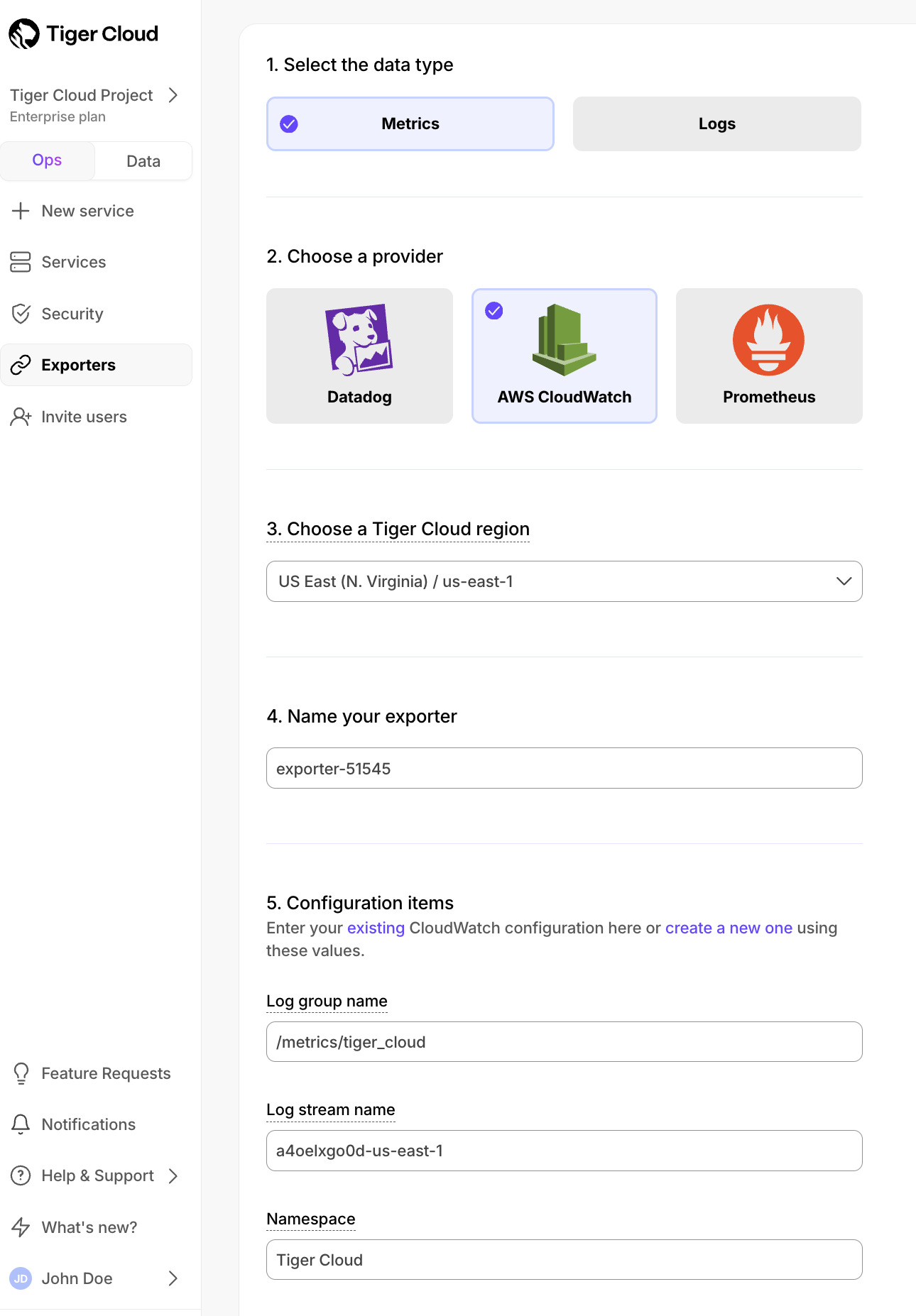
4. **Provide your AWS CloudWatch configuration**
* The AWS region must be the same for your {CLOUD_LONG} exporter and AWS CloudWatch Log group.
* The exporter name appears in {CONSOLE}, best practice is to make this name easily understandable.
* For CloudWatch credentials, either use an [existing CloudWatch Log group][console-cloudwatch-configuration]
or [create a new one][console-cloudwatch-create-group]. If you're uncertain, use
the default values. For more information, see [Working with log groups and log streams][cloudwatch-log-naming].
5. **Choose the authentication method to use for the exporter**
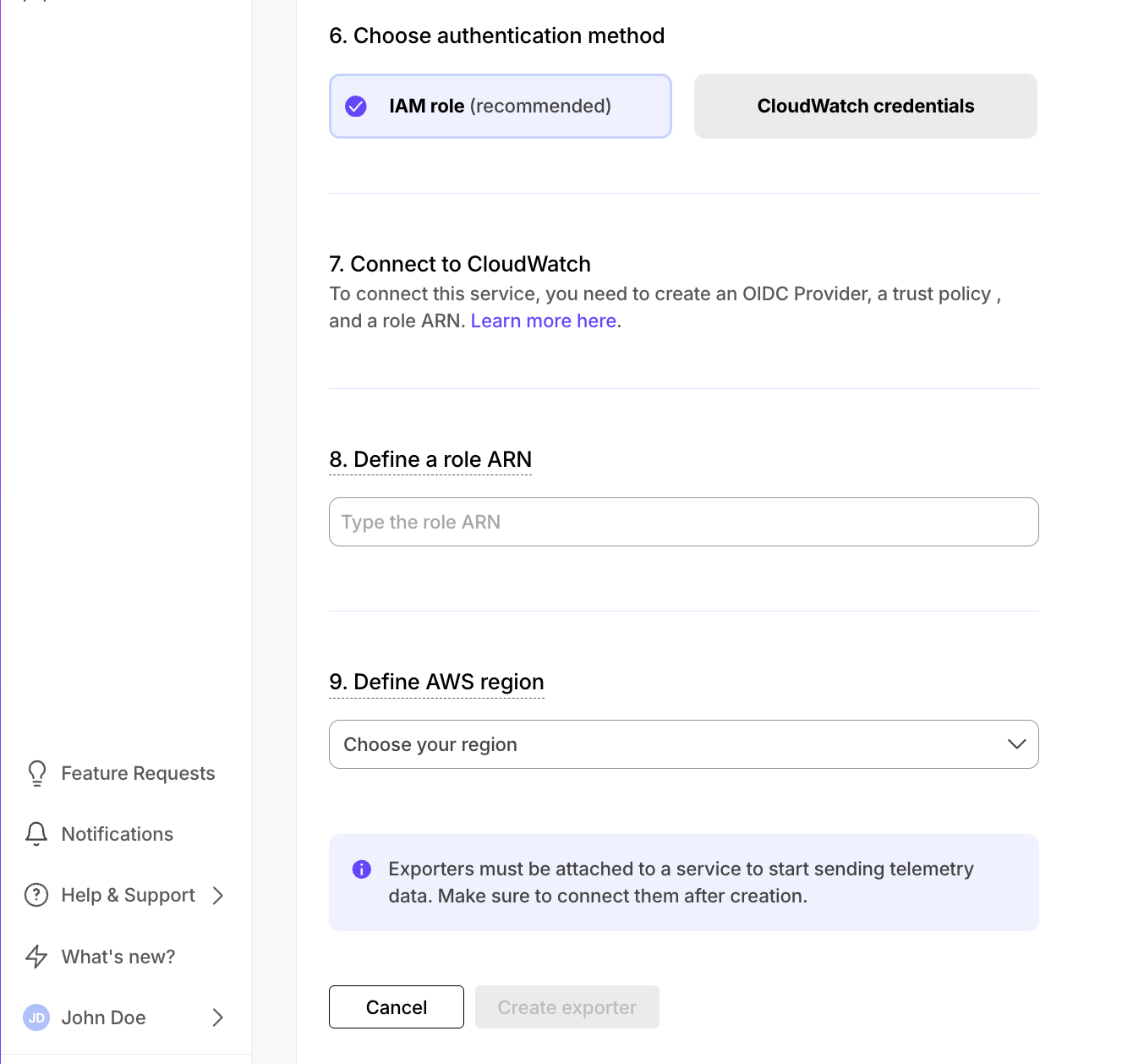
1. In AWS, navigate to [IAM > Identity providers][create-an-iam-id-provider], then click `Add provider`.
2. Update the new identity provider with your details:
Set `Provider URL` to the [region where you are creating your exporter][reference].
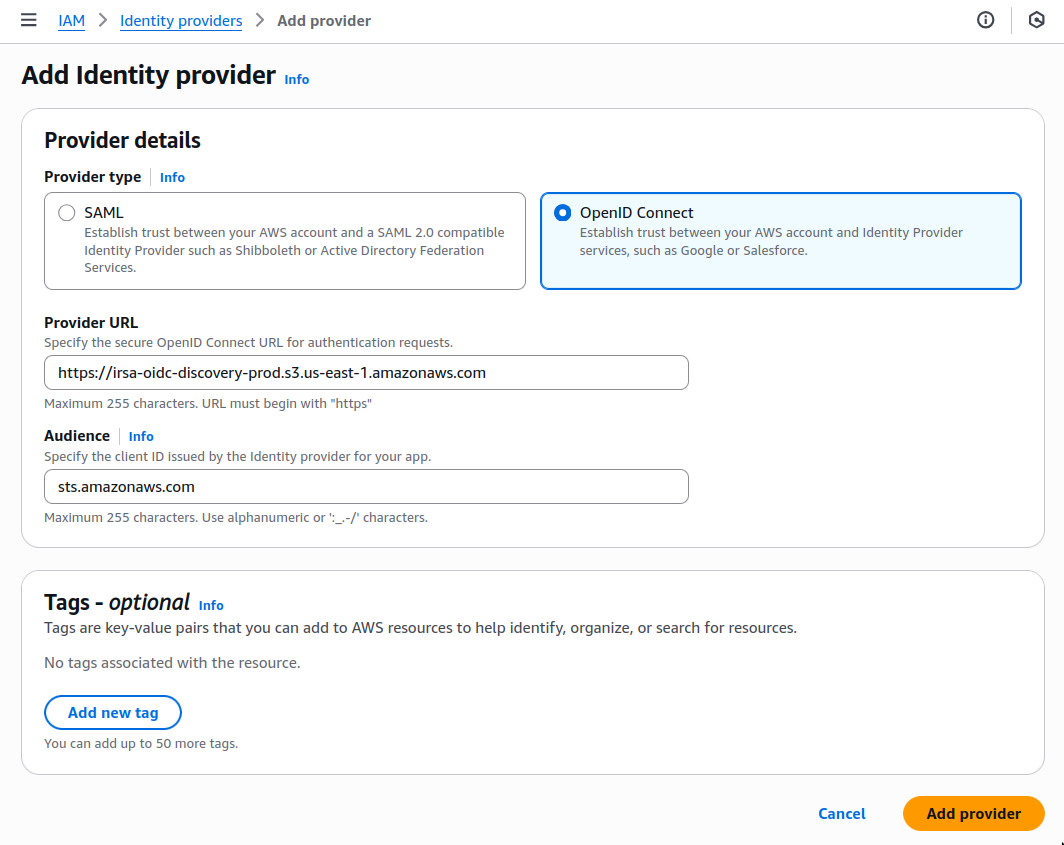
3. Click `Add provider`.
4. In AWS, navigate to [IAM > Roles][add-id-provider-as-wi-role], then click `Create role`.
5. Add your identity provider as a Web identity role and click `Next`.
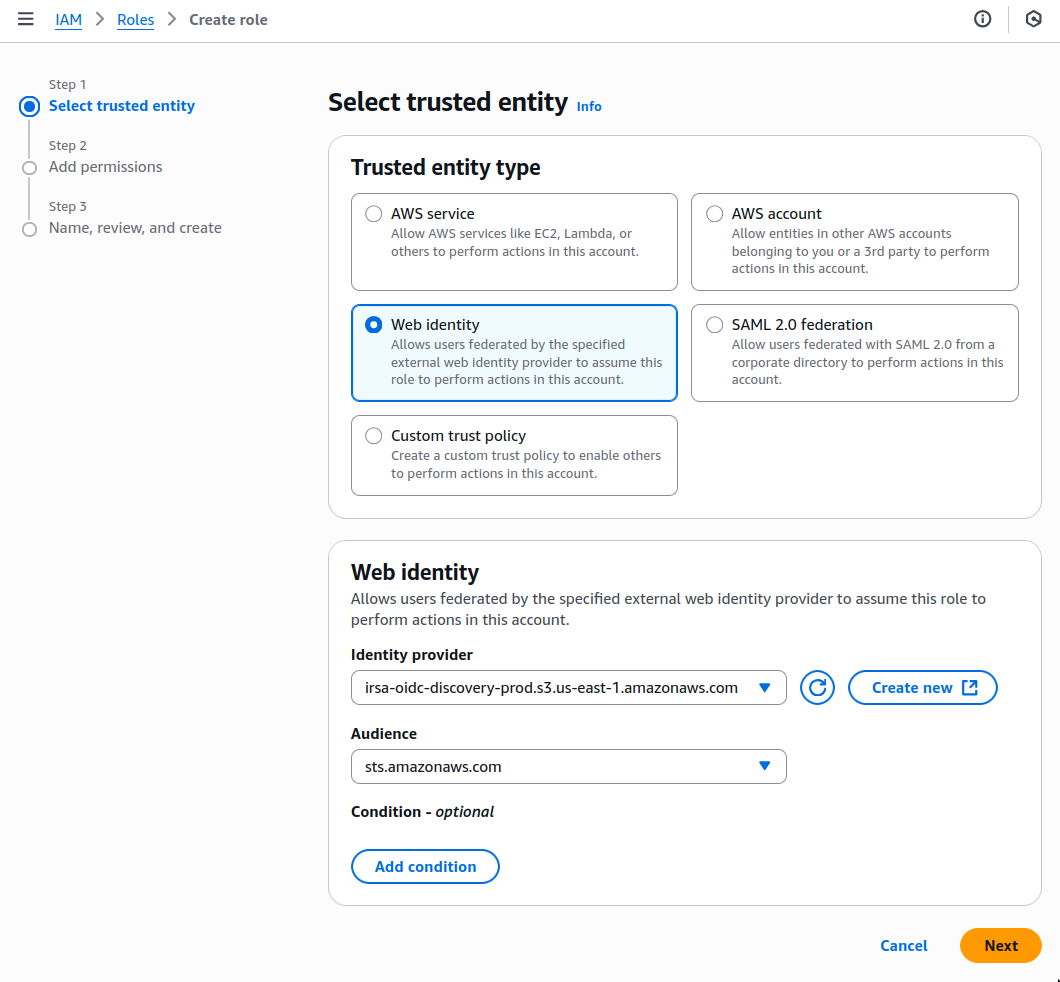
6. Set the following permission and trust policies:
* Permission policy:
```json
{
"Version": "2012-10-17",
"Statement": [
{
"Effect": "Allow",
"Action": [
"logs:PutLogEvents",
"logs:CreateLogGroup",
"logs:CreateLogStream",
"logs:DescribeLogStreams",
"logs:DescribeLogGroups",
"logs:PutRetentionPolicy",
"xray:PutTraceSegments",
"xray:PutTelemetryRecords",
"xray:GetSamplingRules",
"xray:GetSamplingTargets",
"xray:GetSamplingStatisticSummaries",
"ssm:GetParameters"
],
"Resource": "*"
}
]
}
```
* Role with a Trust Policy:
```json
{
"Version": "2012-10-17",
"Statement": [
{
"Effect": "Allow",
"Principal": {
"Federated": "arn:aws:iam::12345678910:oidc-provider/irsa-oidc-discovery-prod.s3.us-east-1.amazonaws.com"
},
"Action": "sts:AssumeRoleWithWebIdentity",
"Condition": {
"StringEquals": {
"irsa-oidc-discovery-prod.s3.us-east-1.amazonaws.com:aud": "sts.amazonaws.com"
}
}
},
{
"Sid": "Statement1",
"Effect": "Allow",
"Principal": {
"AWS": "arn:aws:iam::12345678910:role/my-exporter-role"
},
"Action": "sts:AssumeRole"
}
]
}
```
7. Click `Add role`.
When you use CloudWatch credentials, you link an Identity and Access Management (IAM)
user with access to CloudWatch only with your {SERVICE_LONG}:
1. Retrieve the user information from [IAM > Users in AWS console][list-iam-users].
If you do not have an AWS user with access restricted to CloudWatch only,
[create one][create-an-iam-user].
For more information, see [Creating IAM users (console)][aws-access-keys].
2. Enter the credentials for the AWS IAM user.
AWS keys give access to your AWS services. To keep your AWS account secure, restrict users to the minimum required permissions. Always store your keys in a safe location. To avoid this issue, use the IAM role authentication method.
6. Select the AWS Region your CloudWatch services run in, then click `Create exporter`.
[console-integrations]: https://console.cloud.timescale.com/dashboard/integrations
[console-cloudwatch-configuration]: https://console.aws.amazon.com/cloudwatch/home#logsV2:log-groups
[console-cloudwatch-create-group]: https://console.aws.amazon.com/cloudwatch/home#logsV2:log-groups/create-log-group
[cloudwatch-log-naming]: https://docs.aws.amazon.com/AmazonCloudWatch/latest/logs/Working-with-log-groups-and-streams.html
[reference]: #reference
[list-iam-users]: https://console.aws.amazon.com/iam/home#/users
[create-an-iam-user]: https://console.aws.amazon.com/iam/home#/users/create
[create-an-iam-id-provider]: https://console.aws.amazon.com/iam/home#/identity_providers
[add-id-provider-as-wi-role]: https://console.aws.amazon.com/iam/home#/roles
[aws-access-keys]: https://docs.aws.amazon.com/IAM/latest/UserGuide/id_users_create.html#id_users_create_console
### Attach a data exporter to a {SERVICE_LONG}
To send telemetry data to an external monitoring tool, you attach a data exporter to your
{SERVICE_LONG}. You can attach only one exporter to a {SERVICE_SHORT}.
To attach an exporter:
1. **In [{CONSOLE}][console-services], choose the {SERVICE_SHORT}**
2. **Click `Operations` > `Exporters`**
3. **Select the exporter, then click `Attach exporter`**
4. **If you are attaching a first `Logs` data type exporter, restart the {SERVICE_SHORT}**
### Monitor {SERVICE_LONG} metrics
You can now monitor your {SERVICE_SHORT} metrics. Use the following metrics to check the service is running correctly:
* `timescale.cloud.system.cpu.usage.millicores`
* `timescale.cloud.system.cpu.total.millicores`
* `timescale.cloud.system.memory.usage.bytes`
* `timescale.cloud.system.memory.total.bytes`
* `timescale.cloud.system.disk.usage.bytes`
* `timescale.cloud.system.disk.total.bytes`
Additionally, use the following tags to filter your results.
| Tag | Example variable | Description |
| ------------ | --------------------------- | --------------------------------- |
| `host` | `us-east-1.timescale.cloud` | |
| `project-id` | | |
| `service-id` | | |
| `region` | `us-east-1` | AWS region |
| `role` | `replica` or `primary` | For {SERVICE_SHORT} with replicas |
| `node-id` | | For multi-node services |
### Edit a data exporter
To update a data exporter:
1. **In {CONSOLE}, open [Exporters][console-integrations]**
2. **Next to the exporter you want to edit, click the menu > `Edit`**
3. **Edit the exporter fields and save your changes**
You cannot change fields such as the provider or the AWS region.
### Delete a data exporter
To remove a data exporter that you no longer need:
1. **Disconnect the data exporter from your {SERVICE_LONG}s**
1. In [{CONSOLE}][console-services], choose the {SERVICE_SHORT}.
2. Click `Operations` > `Exporters`.
3. Click the trash can icon.
4. Repeat for every {SERVICE_SHORT} attached to the exporter you want to remove.
The data exporter is now unattached from all {SERVICE_SHORT}s. However, it still exists in your project.
2. **Delete the exporter on the project level**
1. In {CONSOLE}, open [Exporters][console-integrations]
2. Next to the exporter you want to edit, click menu > `Delete`
3. Confirm that you want to delete the data exporter.
### Reference
When you create the IAM OIDC provider, the URL must match the region you create the exporter in.
It must be one of the following:
| Region | Zone | Location | URL |
| ---------------- | ------------- | -------------- | ------------------------------------------------------------------------- |
| `ap-southeast-1` | Asia Pacific | Singapore | `irsa-oidc-discovery-prod-ap-southeast-1.s3.ap-southeast-1.amazonaws.com` |
| `ap-southeast-2` | Asia Pacific | Sydney | `irsa-oidc-discovery-prod-ap-southeast-2.s3.ap-southeast-2.amazonaws.com` |
| `ap-northeast-1` | Asia Pacific | Tokyo | `irsa-oidc-discovery-prod-ap-northeast-1.s3.ap-northeast-1.amazonaws.com` |
| `ca-central-1` | Canada | Central | `irsa-oidc-discovery-prod-ca-central-1.s3.ca-central-1.amazonaws.com` |
| `eu-central-1` | Europe | Frankfurt | `irsa-oidc-discovery-prod-eu-central-1.s3.eu-central-1.amazonaws.com` |
| `eu-west-1` | Europe | Ireland | `irsa-oidc-discovery-prod-eu-west-1.s3.eu-west-1.amazonaws.com` |
| `eu-west-2` | Europe | London | `irsa-oidc-discovery-prod-eu-west-2.s3.eu-west-2.amazonaws.com` |
| `sa-east-1` | South America | São Paulo | `irsa-oidc-discovery-prod-sa-east-1.s3.sa-east-1.amazonaws.com` |
| `us-east-1` | United States | North Virginia | `irsa-oidc-discovery-prod.s3.us-east-1.amazonaws.com` |
| `us-east-2` | United States | Ohio | `irsa-oidc-discovery-prod-us-east-2.s3.us-east-2.amazonaws.com` |
| `us-west-2` | United States | Oregon | `irsa-oidc-discovery-prod-us-west-2.s3.us-west-2.amazonaws.com` |
[aws-access-keys]: https://docs.aws.amazon.com/IAM/latest/UserGuide/id_users_create.html#id_users_create_console
[irsa]: https://aws.amazon.com/blogs/opensource/introducing-fine-grained-iam-roles-service-accounts/
[cross-account-iam-roles]: https://aws.amazon.com/blogs/containers/cross-account-iam-roles-for-kubernetes-service-accounts/
[cloudwatch]: https://aws.amazon.com/cloudwatch/
[cloudwatch-docs]: https://docs.aws.amazon.com/cloudwatch/index.html
[cloudwatch-log-naming]: https://docs.aws.amazon.com/AmazonCloudWatch/latest/logs/Working-with-log-groups-and-streams.html
[datadog]: https://www.datadoghq.com
[datadog-api-key]: https://docs.datadoghq.com/account_management/api-app-keys/#add-an-api-key-or-client-token
[datadog-docs]: https://docs.datadoghq.com/
[datadog-metrics-explorer]: https://app.datadoghq.com/metric/explorer
[console-integrations]: https://console.cloud.timescale.com/dashboard/integrations
[console-services]: https://console.cloud.timescale.com/dashboard/services
[list-iam-users]: https://console.aws.amazon.com/iam/home#/users
[create-an-iam-user]: https://console.aws.amazon.com/iam/home#/users/create
[console-cloudwatch-configuration]: https://console.aws.amazon.com/cloudwatch/home#logsV2:log-groups
[console-cloudwatch-create-group]: https://console.aws.amazon.com/cloudwatch/home#logsV2:log-groups/create-log-group
[services-portal]: https://console.cloud.timescale.com/dashboard/services
[pricing-plan-features]: /about/:currentVersion:/pricing-and-account-management/#features-included-in-each-plan
[projects]: /use-timescale/:currentVersion:/members/
[pricing-plan-features]: /about/:currentVersion:/pricing-and-account-management/#features-included-in-each-plan
[cloudwatch]: https://aws.amazon.com/cloudwatch/
[cloudwatch-signup]: https://docs.aws.amazon.com/AmazonCloudWatch/latest/monitoring/GettingSetup.html